Overview

This guide walks you through adding the Quartr dataset from the Snowflake Marketplace. The process takes a few minutes and requires ACCOUNTADMIN role or equivalent import privileges.
1

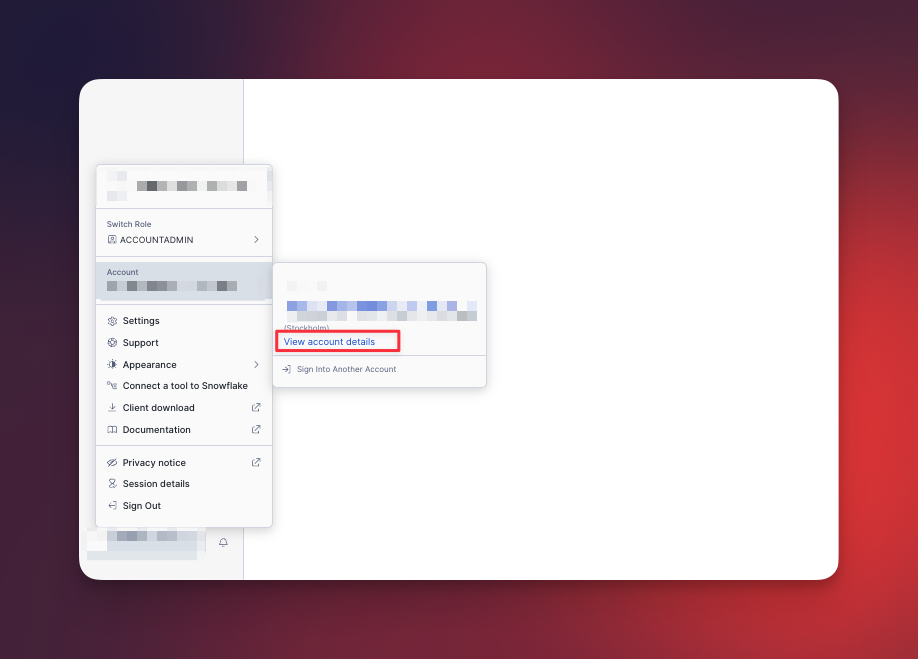
Find your account identifier

Click your username in the bottom-left corner of Snowflake, then hover over your account name and click View account details.Open account details from the user menu
2

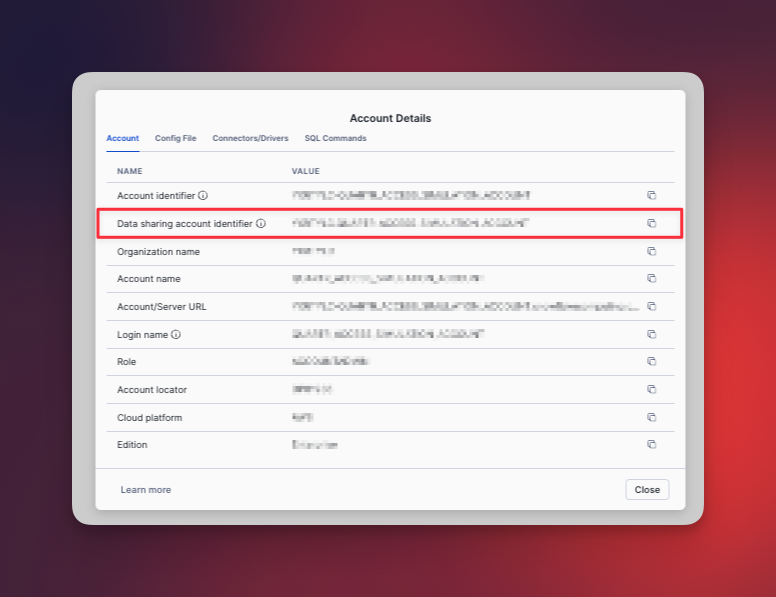
Copy your data sharing account identifier

In the Account Details dialog, locate the Data sharing account identifier row and copy the value. You’ll need this to share with Quartr.Account Details dialog with Data sharing account identifier highlighted
3

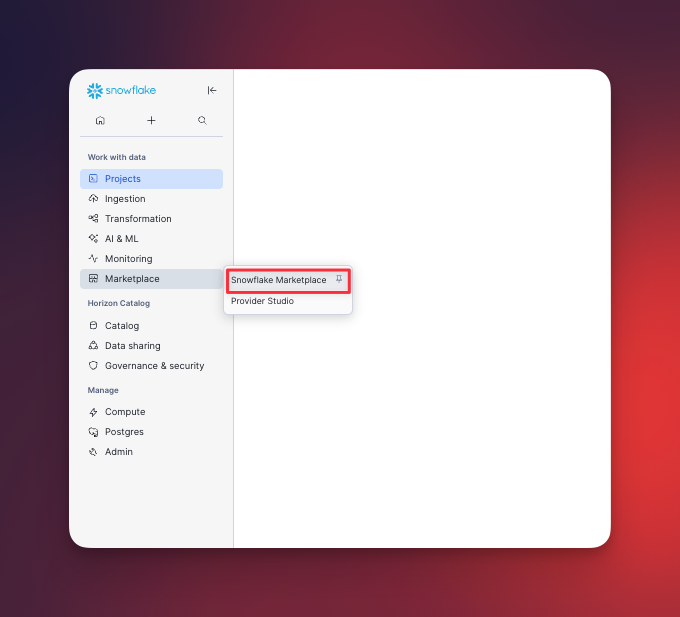
Open the Snowflake Marketplace

In the left sidebar, expand Marketplace and click Snowflake Marketplace.Navigate to Snowflake Marketplace in the sidebar
4

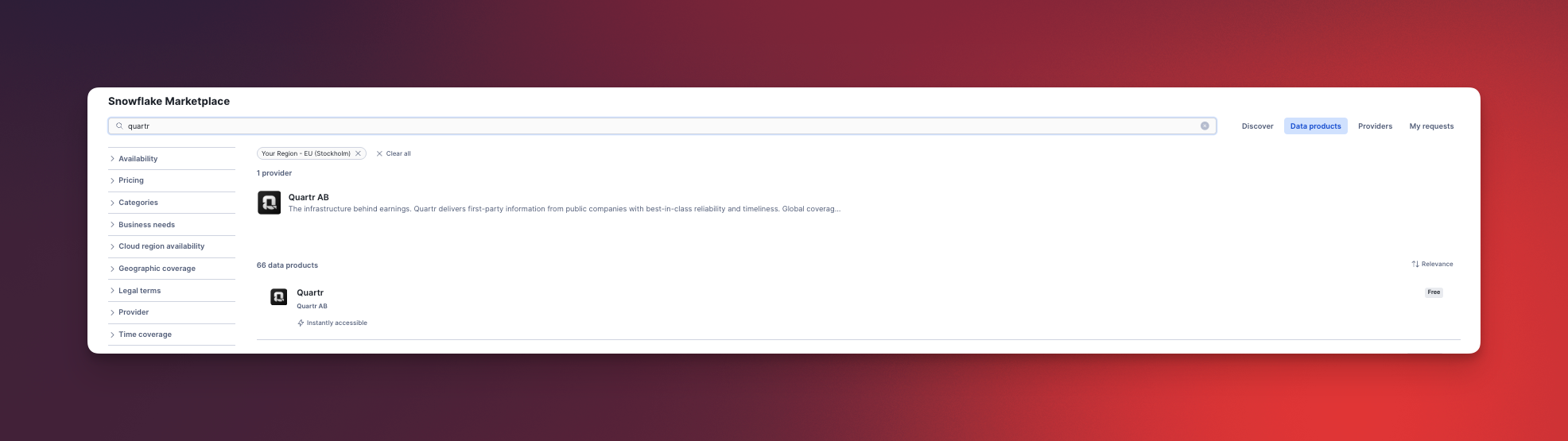
Search for Quartr

In the marketplace search bar, type quartr. Select the Quartr listing published by Quartr AB.Search results showing the Quartr listing by Quartr AB
5

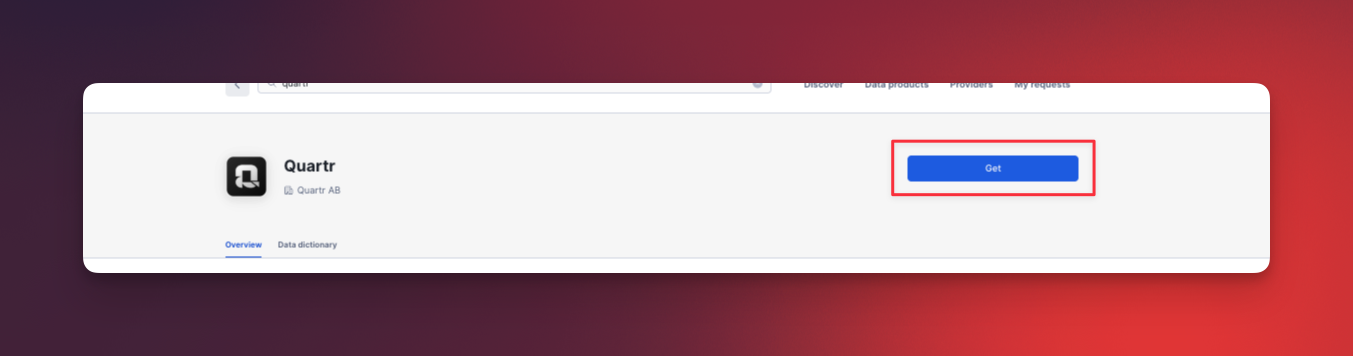
Click Get on the listing

On the Quartr listing page, click the Get button in the top-right corner.Quartr listing page with the Get button highlighted
6

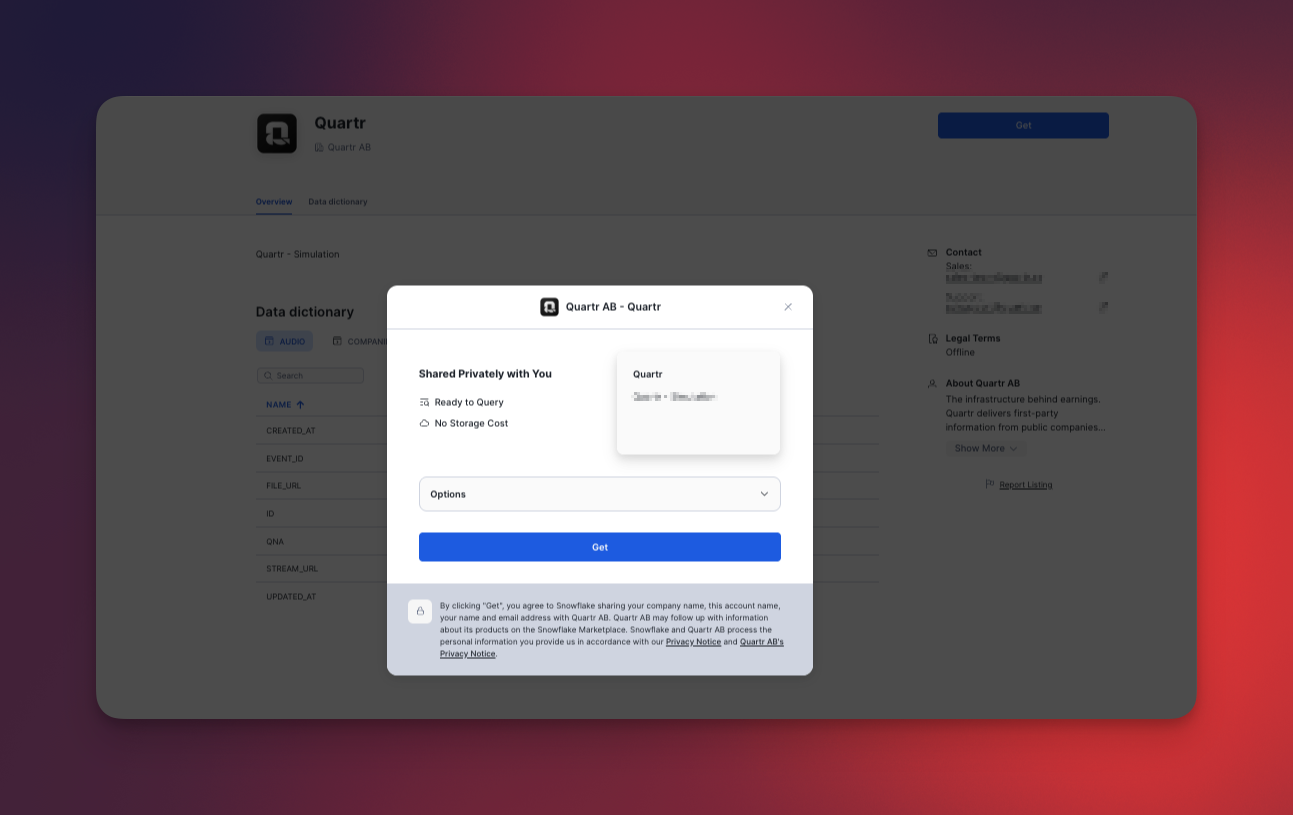
Review the sharing details

A dialog will appear confirming that the dataset is Shared Privately with You and is Ready to Query with No Storage Cost. Click Options to configure the database before proceeding.Sharing confirmation dialog
7

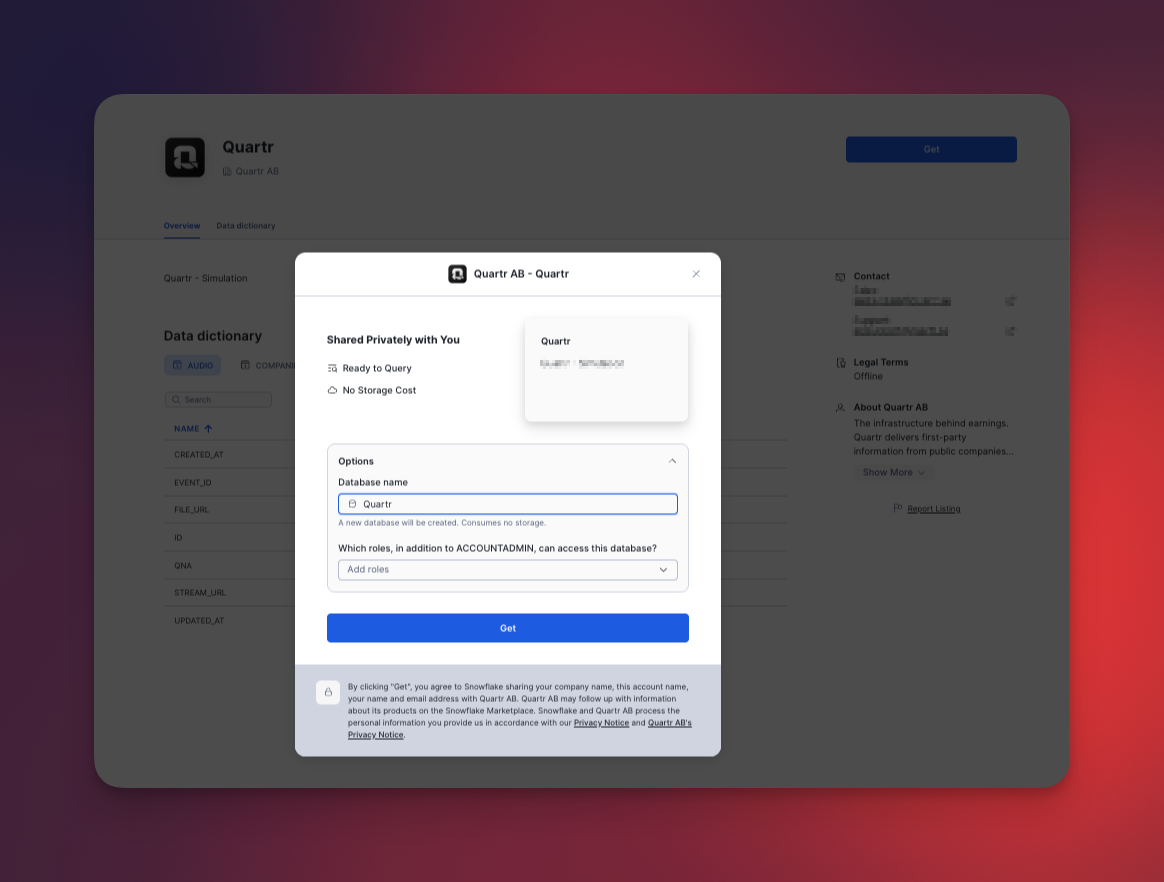
Configure database name and role access

Set a Database name for the Quartr data in your account. Optionally, add any roles (beyond ACCOUNTADMIN) that should have access to this database. Click Get to confirm.Options expanded showing database name and role access fields
8

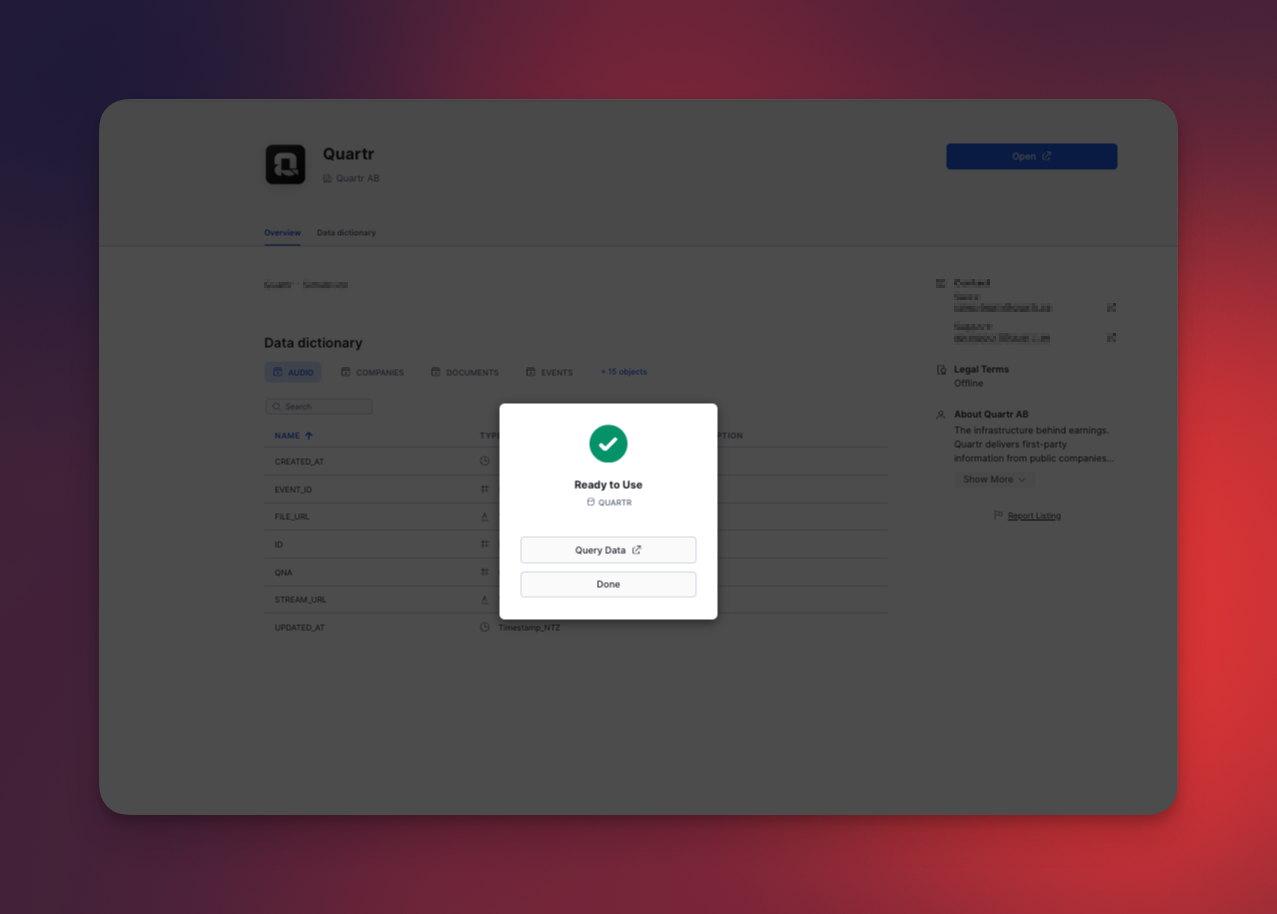
Dataset ready to use

A Ready to Use confirmation will appear. Click Query Data to open a worksheet with the database pre-selected, or click Done to finish.Ready to Use confirmation screen
9

Verify your setup

Run the following query to confirm everything is working. Replace <db_name> with the database name you set in the previous step.
USE DATABASE <db_name>;

SELECT
    e.date,
    c.name,
    e.title,
    e.fiscal_year,
    e.fiscal_period
FROM published.events e
JOIN published.companies c ON e.company_id = c.id
WHERE e.date BETWEEN CURRENT_DATE AND CURRENT_DATE + INTERVAL '7 days'
ORDER BY e.date ASC
LIMIT 50;

Next steps

Now that you have access, you can start exploring the full dataset. Browse available views, join company data with events and filings, or build your own dashboards and models on top of the data. The REST API docs are a useful reference for understanding the data model and available fields.

Need help?

Contact your Quartr representative if you run into any issues during setup.